
You Should Change This Setting to Shoot 4K/120FPS Videos on the iPhone 16 Pro
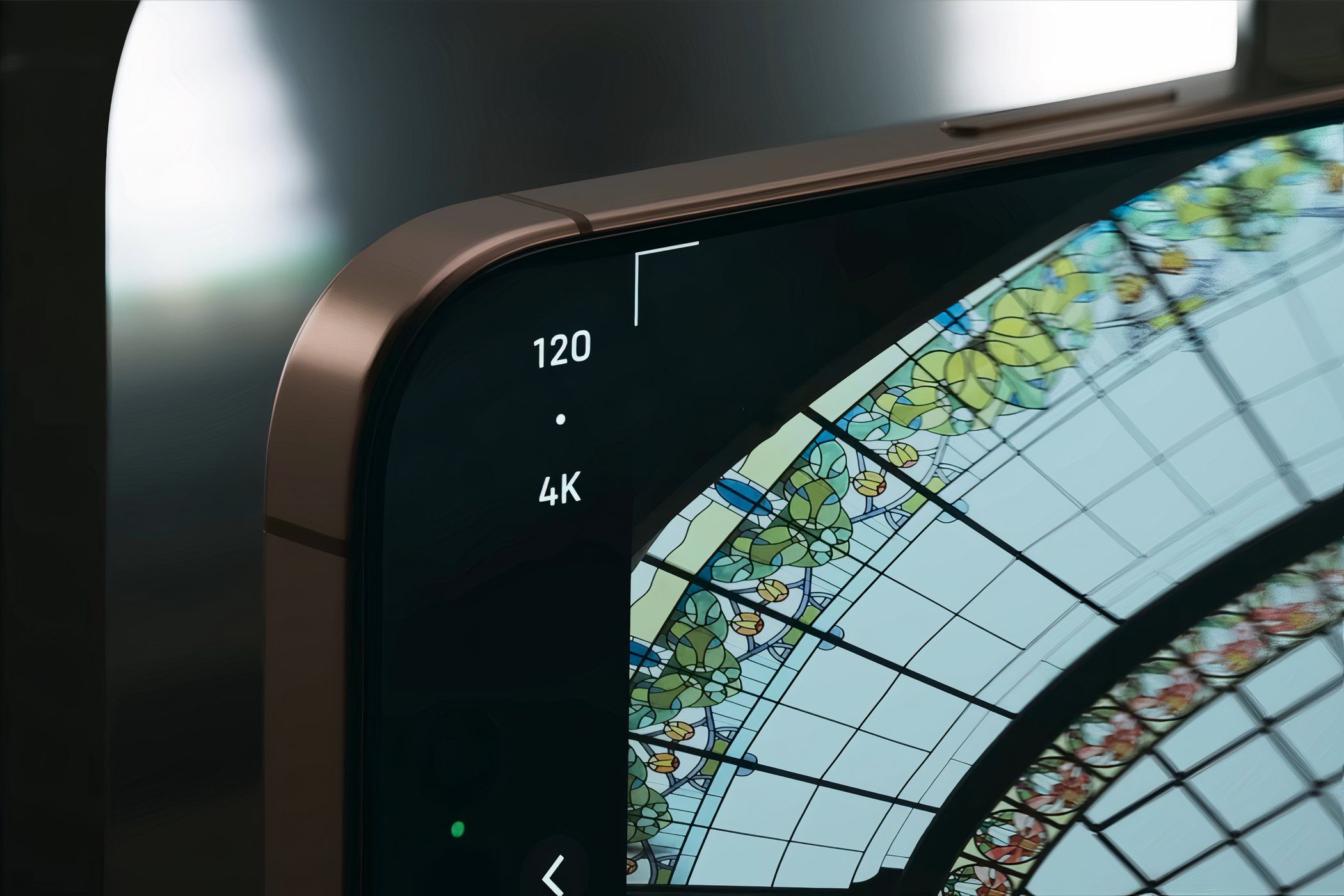
One of the highlighting features of the iPhone 16 Pro models is their ability to shoot 4K videos at 120FPS. However, they only shoot at 60FPS out of the box. I’ll show you how to switch to the higher frame rate mode below, but know that comes with a catch.
How to Shoot at 4K/120FPS on iPhone 16 Pro
It’s pretty easy to start using the 120FPS recording mode in Apple’s Camera app. While you can tap the frame rate toggle in the top-right corner of the Camera app to quickly switch to 120FPS, the app reverts to 60FPS every time you relaunch it.
Therefore, if you always want to make sure the Camera app defaults to the 120FPS mode, follow these steps:
- Open the Settings app on your iPhone.
- Scroll down and tap Camera.
- Tap Record Video and select 4K at 120fps.
Likewise, you can tap Record Slo-mo setting in the Camera settings menu and select the 4k at 120fps option because it’s set to 1080p at 120fps by default.
From now on, whenever you launch the Camera app and switch to the Video mode, you’ll see the 4K 120 in the top-right corner of the screen.
Shooting at 4K/120FPS will quickly
eat up your iPhone’s storage space
. I recommend only using this mode whenever necessary, especially if you have a 128GB or 256GB storage variant.
Only the Main Camera Supports 4K/120FPS
Here’s the catch: The upgraded 48MP ultrawide camera and the fancy 5x 12MP periscope camera on the iPhone 16 Pro are still limited to 4K/60FPS. It’s just the 48MP main “Fusion” camera that supports 4K/120FPS due to its faster sensor readout speed. However, you can still use 2x digital zoom in the Camera app and shoot at this higher frame rate.
Likewise, you can’t shoot at 4K/120FPS in Cinematic mode; that still caps out at 60FPS like before. You’ll also be limited to 60FPS when using the QuickTake feature to record videos without leaving the Photo mode in the Camera app.
Despite these minor quirks, I’m still a huge fan of the new 4K/120FPS mode in the iPhone 16 Pro because now, I can turn any footage into a slow-motion video using the built-in editor in the Photos app.