
This Free Windows Mod Tool Unlocks a Ton of New Functions
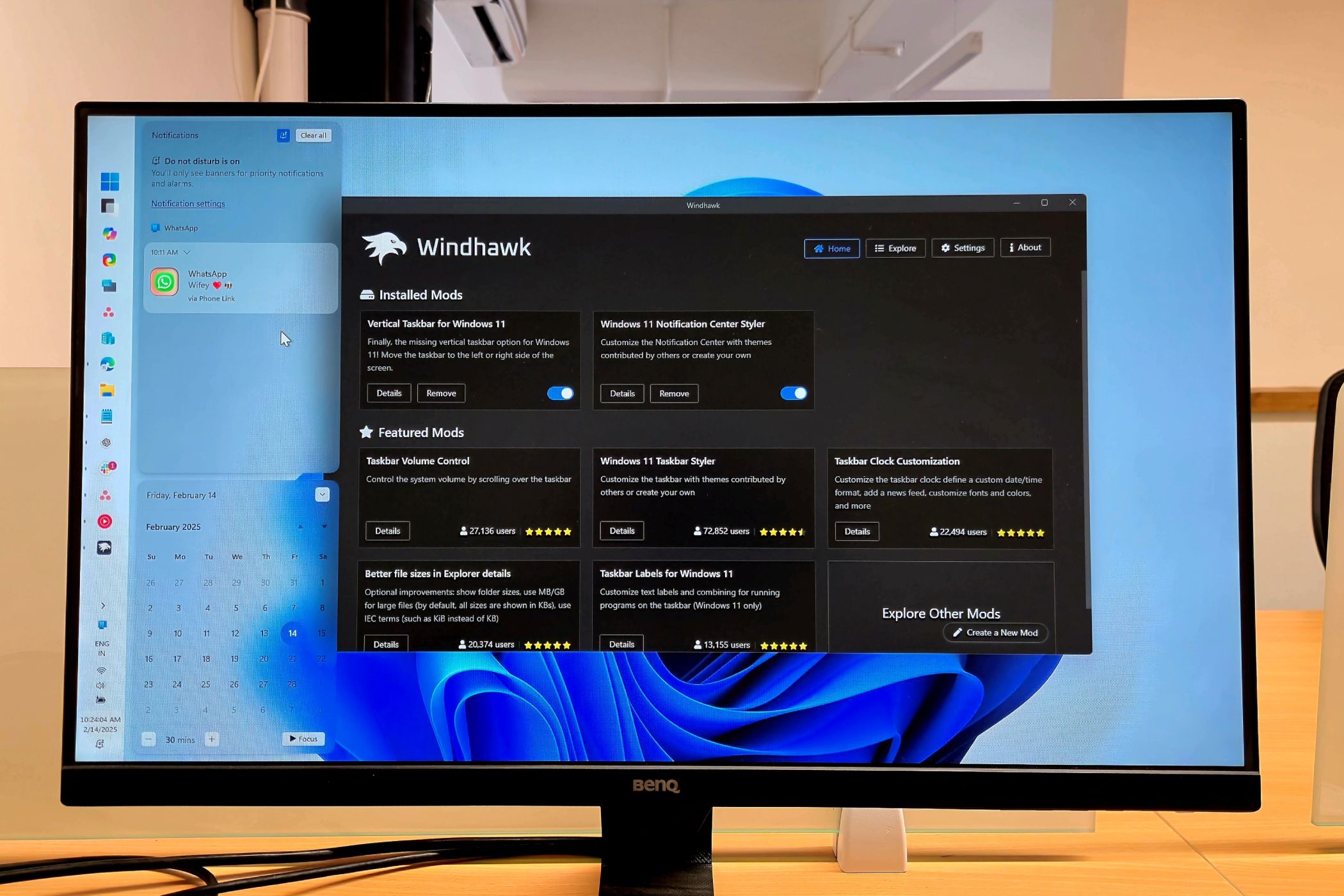
Windows 11 is packed with features, but it also has some quirks. You can easily fix some of those issues—and take advantage of new features and mods—with third-party tools like Windhawk.
While you can customize the default Windows 11 Start menu, it has very limited options. With the Windows 11 Start Menu Styler mod, you can personalize it by applying different themes. You can remove the Recommended section, add a translucent effect, or even restore the Windows 10 Metro-style tiled menu. giving you greater control over your Start menu’s appearance.
To install the mod, first you need to install Windhawk. Once done, head to the Explorer tab in the top right corner of Windhawk, click Details for the Windows 11 Start Menu Styler mod, and finally click Install.
Once installed, open the Settings tab and explore all the pre-made themes in the Theme drop-down. Click Save settings to apply the changes.
2
Taskbar Height and Icon Size

By default, Windows 11 scales the taskbar icons down to 24×24 instead of the standard 32×32 size, which can make them appear blurry or too small.
Using the Taskbar height and icon size mod, you can resize icons and adjust the taskbar’s height and width to more specific sizes. While the mod doesn’t offer a ton of customization options, you can fine-tune the taskbar’s appearance. To adjust the settings, open the Settings tab, and then change the taskbar height, width, and icon size.
It is worth noting that some games with anti-cheat systems may not function properly when Windhawk mods are active. It’s best to try installing some mods and then see how your favorite games react before activating too many at once.
3
Vertical Taskbar for Windows 11

If you want to add the missing vertical taskbar option in Windows 11, Windhawk has a very handy Vertical Taskbar for Windows 11 mod. This mod lets you place the taskbar on the left or right side of the screen.
You can choose the taskbar location for the primary and secondary monitors separately in the Settings tab. You can also adjust the taskbar’s width, making it thinner or wider to better fit your setup.

Related
7 Ways to Get the Most Out Of the Windows 11 Taskbar
The Windows 11 Taskbar sticks around, no matter where you go. Here’s how to get the absolute most out of it.

I have at least 10 tabs open at any time, and switching between them frequently can be a hassle. The Chrome/Edge Scroll Tabs with Mouse Wheel mod helps me cycle between open tabs in Google Chrome, Edge, Opera, and Brave. All I have to do is hover over the tab bar and scroll with the scroll wheel on my mouse to cycle between any open tabs.
After installing the mod, open the Settings tab and enable the Reverse Scrolling Direction and Horizontal scrolling options to start using this feature.
5
Taskbar Labels for Windows 11

Windows 11 only gives you two options for taskbar buttons: combine and hide labels or ungroup and show labels. The Taskbar Labels for Windows 11 adds a third option—allowing you to ungroup the taskbar button while hiding the labels or show the labels while keeping the buttons combined.
Beyond labels, you can use it to customize taskbar width, an app’s running indicator (whichshows if it is open), and progress indicator style to make it centered or aligned to the left. You can even set a fixed appearance for app icons, change font size, and more.
6
Task Bar Volume Control

By default, you can scroll over the speaker icon in the taskbar to adjust your system volume level. But it’s not always convenient. The Task Bar Volume Control mod converts your taskbar into a volume control slider, allowing you to adjust the system volume by scrolling over the taskbar or system tray.
To prevent unintended changes, you can also configure the settings to only change volume when holding the Ctrl key.

Related
Did You Know You Can Set the Volume for Individual Apps on Windows 11?
If an app is too loud on your Windows 11 computer, you can turn it down without affecting everything else.
7
Middle Click to Close on the Taskbar

The Middle click to close on the taskbar mod makes closing apps faster by middle-clicking their icon on the taskbar. You can configure it to close all the windows, or just the active window from the settings. To force close a non-responsive app, simply press Ctrl + middle-click, which will terminate the app process, similar to doing so in the Task Manager.
In addition to these features, there are numerous other mods you can try with Windhawk. I recommend trying out the different options and seeing which ones help make your Windows experience better.