
These Are My Favorite Google Home Automations I’ve Set Up
Automation is the name of the game if you want to make the most out of your smart home devices with Google Home. You can do so much more than just power control by setting up personal or household routines. So, let me share the favorite commands that I set up for the smart home devices in my house.
1 Controlling Several Lights With One Voice Command
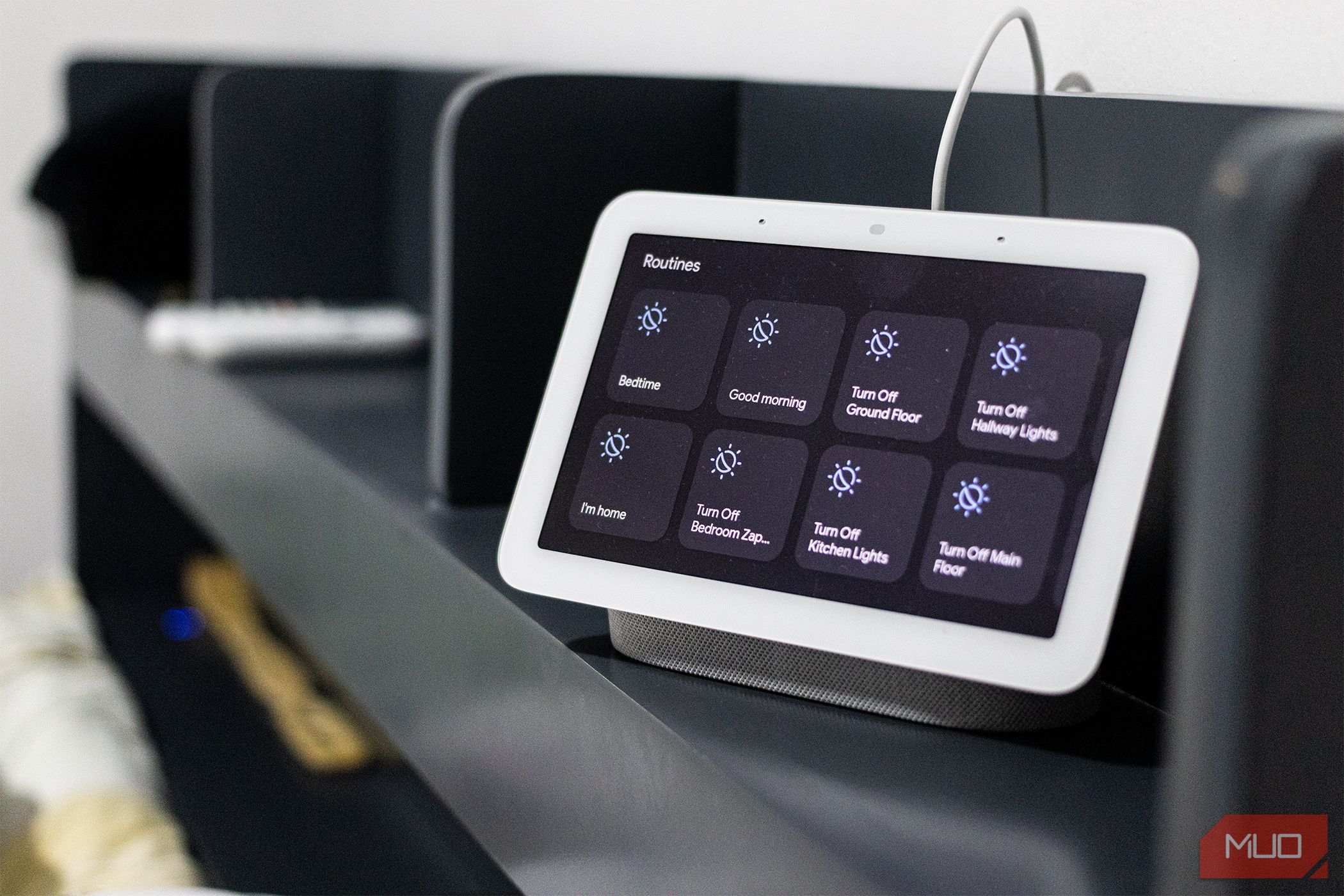
This is one of the first routines that I made when I built my smart home. Some of the rooms in my house use several lights—and since I don’t want to have to manually turn each switch on when I enter an area, I created a routine where one starter (i.e. Hey Google, turn on kitchen) will switch on all the lights in that particular room. I also created an opposing routine that turns off all the lights when I leave an area.
This automation saves me time, as I don’t have to manually command each switch to turn on or off in my room. It’s also particularly useful when I finish washing the dishes and cleaning up downstairs—when I’m ready to go to my bedroom or office, all I need to say is “Hey Google, turn off ground floor” and it will turn off all the lights on the ground floor of my home.
I can also vary this so that my voice command will control a particular set of lights in a room. When I want to enjoy the TV, I can just say, “Hey Google, set movie mode” and it will turn off the overhead lights and switch on the floor lamps that will set the mood for a good movie.
2 Automating My Home’s Perimeter Lights Based on Time
Automating my home’s perimeter lights is the primary reason why I bought into the smart home ecosystem. Since I don’t have fixed working hours, I sometimes sleep through sunset and forget to turn on my house’s perimeter lights.
So, to fix this issue, I created a Google Home toutine that activates daily 15 minutes before sunset. This routine turns on all my perimeter lights and even turns on a couple of interior lights. That way, even if I’m asleep or away, my house will light up, helping me feel safe and secure. I also added another routine that runs 15 minutes after sunrise every day that will turn off the exterior lights, helping me save electricity.
3 Automatic Climate Control Based on Humidity

I don’t like entering a warm and humid room, so I use a remote and sensor to record the temperature and humidity in my bedroom and my office. I then set up a household routine in Google Home that turns on my air conditioning unit in dry mode when the humidity goes above 45%. And because I don’t want to use too much electricity, I also set another routine that switches off my air conditioner when the humidity drops below 35%.
When I’m working, I don’t want this automation turned on, since I prefer controlling my air conditioning unit manually. So, I also added a schedule to the routine, meaning this automatic climate control will only work during the day.
4 Turning on the Bedroom Lights and Playing the News When I Dismiss My Alarm

Waking up is difficult for most people, and there have already been several instances where I have swiped my alarm off and then went back to sleep. So to avoid oversleeping and missing important things, I set a personal routine that automatically turns on my bedroom lights and the news when I turn off my alarm. That way, I’m stimulated both visually and aurally, pushing me to get up and go about my business for the day.
Aside from that, I also adjust my Google Nest Hub volume to 80%, set my Android phone’s ringer volume to maximum, and turn off Do Not Disturb. This ensures that I don’t miss any notifications that might come in on my phone as I go about my day.
5 Programming a Wake-Up and Bedtime Routine
Besides my alarm automation, I also created a wake-up and bedtime routine that prepares my house whenever I get out of bed or before I go to sleep. When I say “Hey Google, good morning” to my Google Nest device, it tells me about my calendar and to-do list. It also turns on my electric kettle in the kitchen so I have hot water for morning tea or chocolate to get me up and running.
And when my day ends, I can say “Hey Google, good night” to my bedroom display and it will ensure that all my indoor lights are switched off, reduce the volume of my Android phone to zero, and turn on Do Not Disturb. It will also lower the volume on my bedroom display and play some calming music to help me nod off.
These automations help me hit the ground running when I start my day and allow me to relax much faster when I turn in for the night.
6 Running a Workday Program to Keep Me Updated

Since I work from home, I don’t have coworkers physically around me to get me into the groove. So I substitute that with my Google Home automations. My workday routine automatically starts during weekdays, but since I work at night, I changed them to start in the evening.
The first thing it does it tell me about my calendar and to-do list again at the start of my workday at 5pm. It then reminds me to take a break two hours later. At 9:30 pm, my Google Nest speaker will remind me to have lunch, then it will tell me to go drink a glass of water and go for a walk at 11pm. At 1am, it reminds me to wrap up.
With these automations, I can maintain a healthy work-life balance, even though I’m working at home. I don’t spend too much time sitting down and make working at my desk pain-free. All these things allow me to move more efficiently in my home and office, and these are some of the reasons why I will always want to live in a smart home.