
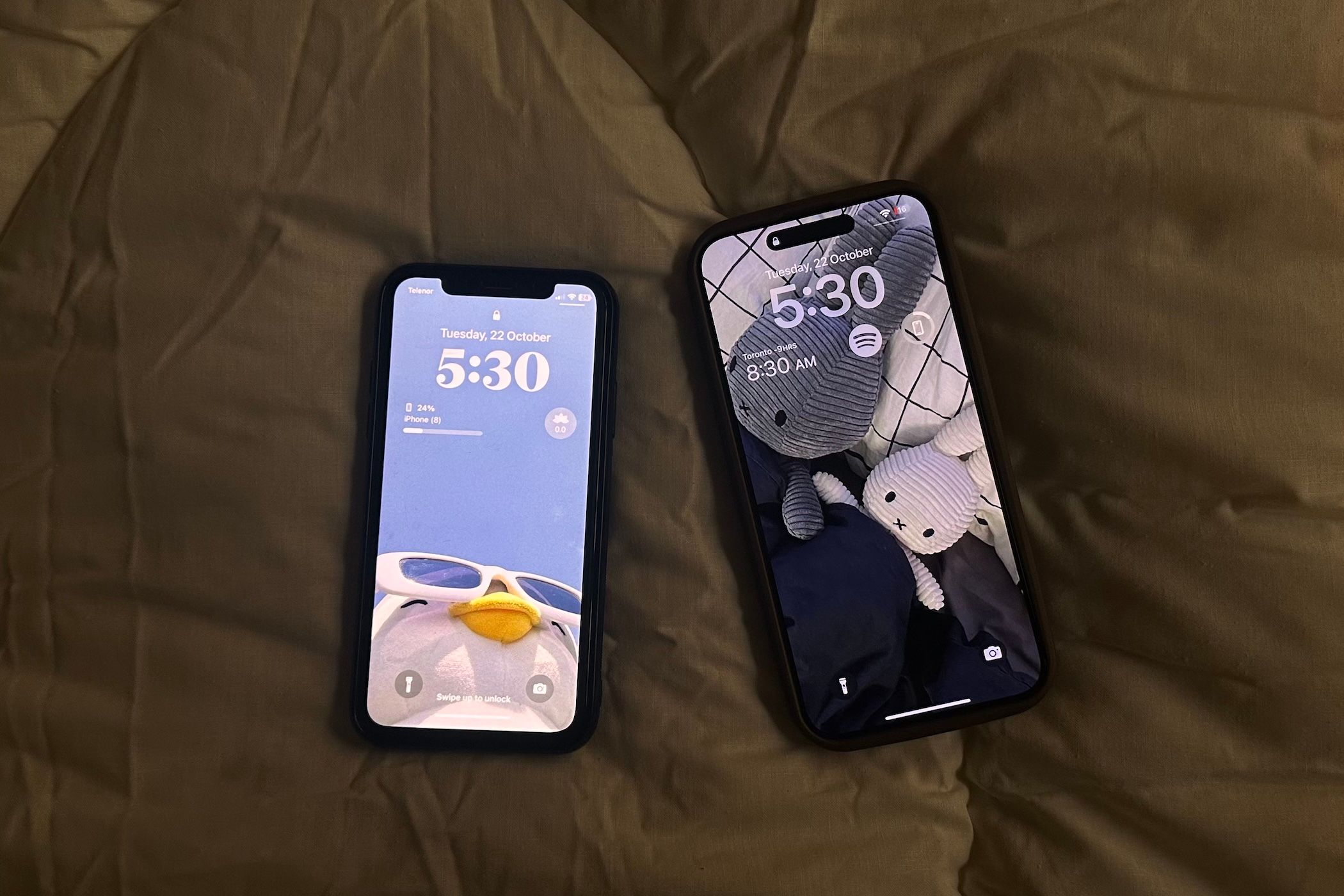
How to Transfer Your Data From an Old iPhone to a New iPhone (or iPad)
Upgrading to a new iPhone or iPad can be daunting, especially if you have a lot of data. Thankfully, there are a few easy ways to move your data from an old iPhone to a new one.
1
Quick Start
Quick Start has been built into all iPhones and iPads since the release of iOS 11 and iPadOS 13. It’s great because it takes the pressure off you and automatically handles the transfer process. You don’t even need to have a backup of your data for this method to work. However, you will need your old iPhone handy.
Make sure your old iPhone is connected to Wi-Fi and Bluetooth is on. Then, place both devices next to each other, and your old phone will prompt you to set up the new one.
After confirming your Apple ID, you’ll scan an animation to link them, and then all your data—apps, settings, messages, and photos—will be transferred wirelessly to the new device. The only downside here is that the process can take some time, so you’ll need to keep both phones close to each other and charged.
2
iCloud
iCloud is another feature that lets you move your data to a new iPhone or iPad. With this method, you don’t need to have your old device nearby, although you do need to make a backup of your old iPhone using iCloud first.
To ensure you have a recent iCloud backup:
- Open Settings on your old iPhone and tap Your Name at the top.
- Select iCloud and then choose iCloud Backup.
- Tap Back Up Now.
If you have trouble syncing your device, check out the most common iCloud issues and how to fix them.
When setting up your new device, select Restore from iCloud Backup and sign in with your Apple ID.
Choose your latest backup to start downloading your data. Keep your device connected and charged while it’s downloading the backup.
3
iTunes

iTunes Transfer lets you move your data to a new iPhone or iPad using a computer. However, you’ll need a recent backup of your old iPhone stored on your Mac or PC.
To create a backup using iTunes, you should do the following:
- Connect your old iPhone to your computer.
- Open Finder (macOS Catalina or later) or iTunes (Windows or older versions of macOS).
- Select your device, click Back Up Now, and wait for the process to complete.
Once the backup is finished, you can start transferring the data to your new iPhone:
- Choose Restore from Mac or PC
- Connect your new iPhone to your computer.
- Open Finder or iTunes, select Restore from this backup, and choose the latest backup.
Wait for the process to finish before you start using your new iPhone.
4
Wired Connection

A wired transfer is another great way to move data from your old iPhone to a new one—and arguably the fastest method on this list. You’ll need a charging cable and both your iPhones for this option. Depending on what iPhone you’re transferring from, the required cables can vary.
- For iPhone 15 to iPhone 16 and newer, you’ll need a USB-C charge cable.
- For iPhone 14 or older to iPhone 15 or newer, you’ll need a Lightning to USB C cable.
- If you’re transferring your data from an iPhone 14 or older to another iPhone 14 or older, you’ll need a Lightning to USB 3 Camera Adapter and a Lightning to USB cable.
Start by connecting both iPhones. If you have an iPhone 14 or older, plug the adapter into your old device, then use the Lightning to USB (or USB-C) cable to connect it to your new iPhone. Turn on your new device and follow the instructions. When prompted, select Transfer from iPhone to move your data over.
Make sure you keep both devices connected and charged during the data transfer process. Once finished, your new iPhone will have all the data from your old iPhone.
Overall, Quick Start is the easiest method for direct transfers, but iCloud is great if you don’t have your old device. If you prefer to keep your backups on your computer, iTunes is still a great tried-and-true option.
If you want the fastest option, then wired transfers are still the best way to go, though it may require some additional cables depending on which iPhone you’re upgrading from. Of course, transferring the data from your old iPhone is just one of the many things you should do after buying a new iPhone.