
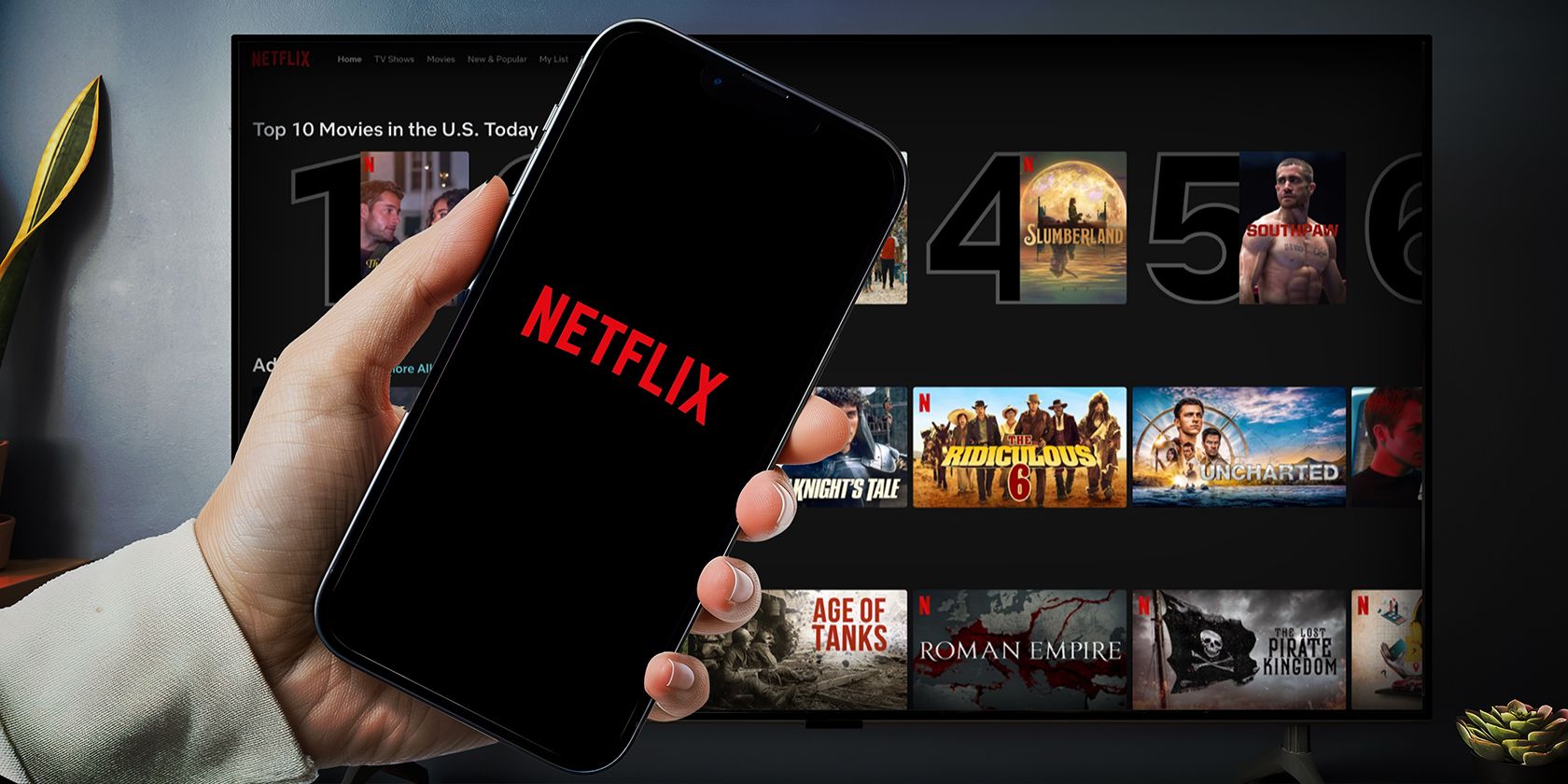
How to Connect an iPhone or iPad to a TV
Do you often find your iPhone’s display to be a bit too small for watching content? You can easily overcome this problem by connecting your iPhone or iPad to a TV. Here, we’ll explore all your options.
Connect an iPhone or iPad to Your TV Wirelessly
If you want to connect your iPhone or iPad to a TV wirelessly, the easiest way is to use AirPlay. However, you’ll need to check if your TV supports AirPlay to take advantage of this method.
The Apple TV is one of the easiest ways to add AirPlay to your TV, but it’s not the only way. Several TV manufacturers make TVs with built-in AirPlay support. These manufacturers include Samsung, LG, Sony, and Vizio.
If you don’t have an AirPlay-supported TV and don’t want to buy an Apple TV, you’re not out of luck. There are AirPlay receivers available that will let you stream to your TV wirelessly and cost less than an Apple TV. Take a look at our roundup of cheap AirPlay receivers for a few recommendations.
Once your TV is ready to stream AirPlay, the rest of the process is fairly easy. Most popular streaming apps include support for AirPlay. In any of these, choose what you want to watch, then tap the AirPlay icon—stylized with a rectangle and an arrow along the bottom edge.
You may see a few options depending on how many AirPlay-ready devices you have in your home. However, you should be able to recognize your TV easily by its name.
Now, one caveat of this approach is that not every iPhone or iPad app supports AirPlay. In such cases, you can typically mirror your iPhone’s screen to your TV. But if your TV doesn’t support AirPlay mirroring, you can use the method below.
Connect an iPhone or iPad to Your TV via HDMI
You need a couple of things to connect your iPhone or iPad to your TV via HDMI. Firstly, you need a free HDMI port on your TV—a relatively easy ask. In the worst-case scenario, all you’ll need to do is temporarily unplug something else.
Secondly, you will need the right cable or adapter for your iPhone or iPad. If you have an iPhone or iPad with a Lightning port, you can use Apple’s Lightning Digital AV Adapter along with a HDMI cable to connect it to your TV.
However, if you have an iPhone or iPad with a USB-C port, you can either use Apple’s USB-C Digital AV Multiport Adapter, which costs $49, or a USB-C to HDMI cable, which you can buy for cheap on Amazon.
Now, all you need to do is plug the adapter into your iPhone or iPad, then plug an HDMI cable into the adapter, and lastly, plug the other end of that HDMI cable into the HDMI port on your TV.
Note that if your iPhone or iPad has a Lightning port, you’ll be limited to 1080p output. However, if you have an iPhone or iPad with a USB-C port, you can get 4K output, provided the adapter or cable supports the HDMI 2.0 standard.
As you’ve seen, you have multiple options to connect your iPhone or iPad to your TV. That said, depending on the phone or TV you own, you may need to jump through a few extra hoops to get everything working properly.