
You Can Erase and Format External Drives on Your iPhone and iPad: Here’s How
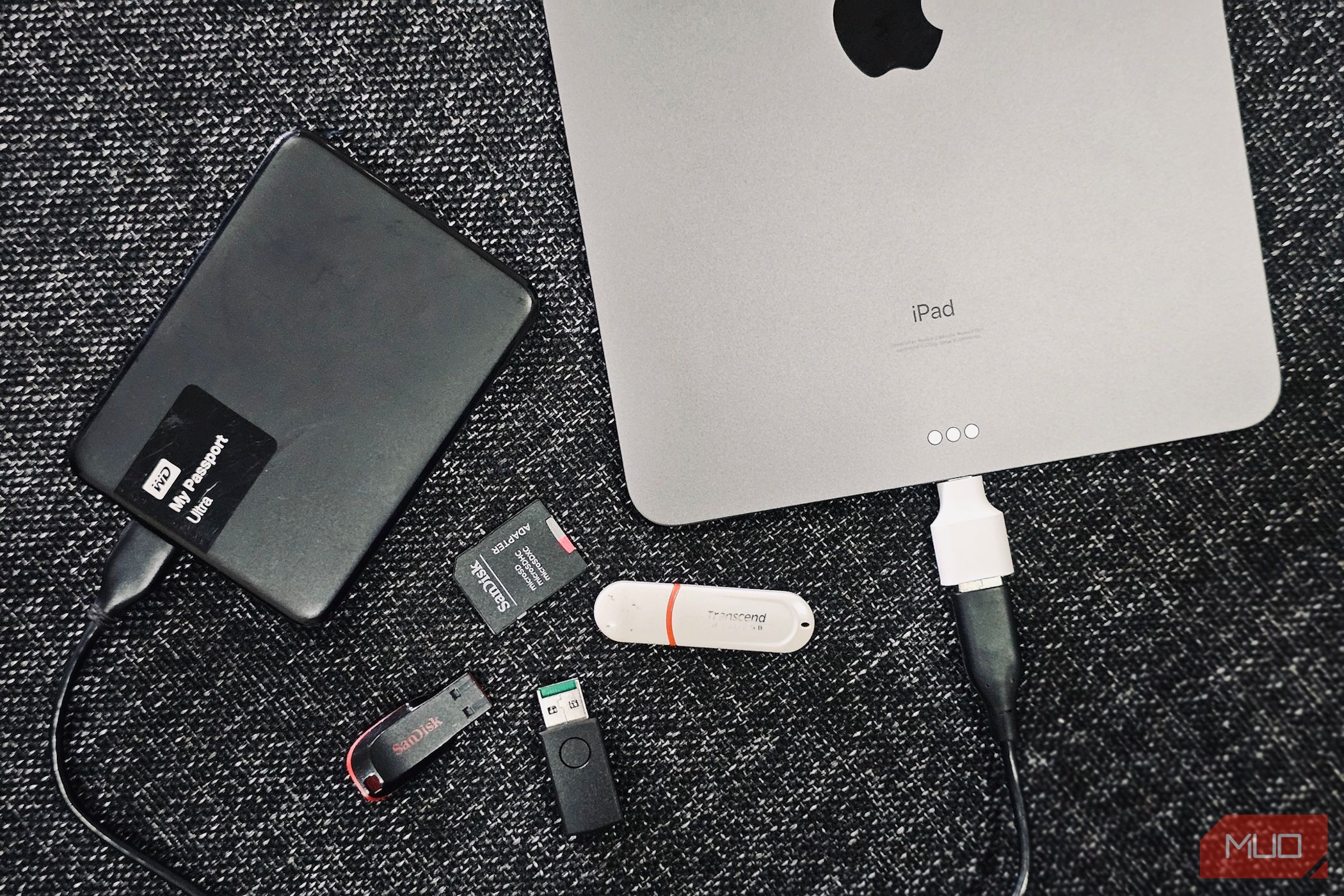
Formatting external drives has never been possible on an iPhone or iPad. However, this changes with iOS 18 and iPadOS 18, which introduce the ability to erase and format external drives using your iPhone or iPad. I’ll show you how to use this feature.
Using the Files App to Format Drives on Your iPhone or iPad
Apple has added a new Erase feature to the built-in Files app. It’s pretty to use, and all you need is an adapter or a USB hub, depending on your iPhone or iPad model and preference. Here’s what you need to do to format an external drive:
- Plug in the external drive you want to format using an adapter or a USB hub.
- Open the Files app, and you’ll see the drive name under Locations in the left sidebar.
- Tap and hold the drive and select Erase.
- According to your requirements, choose an appropriate format for the drive between APFS, ExFAT, and MS-DOS (FAT).
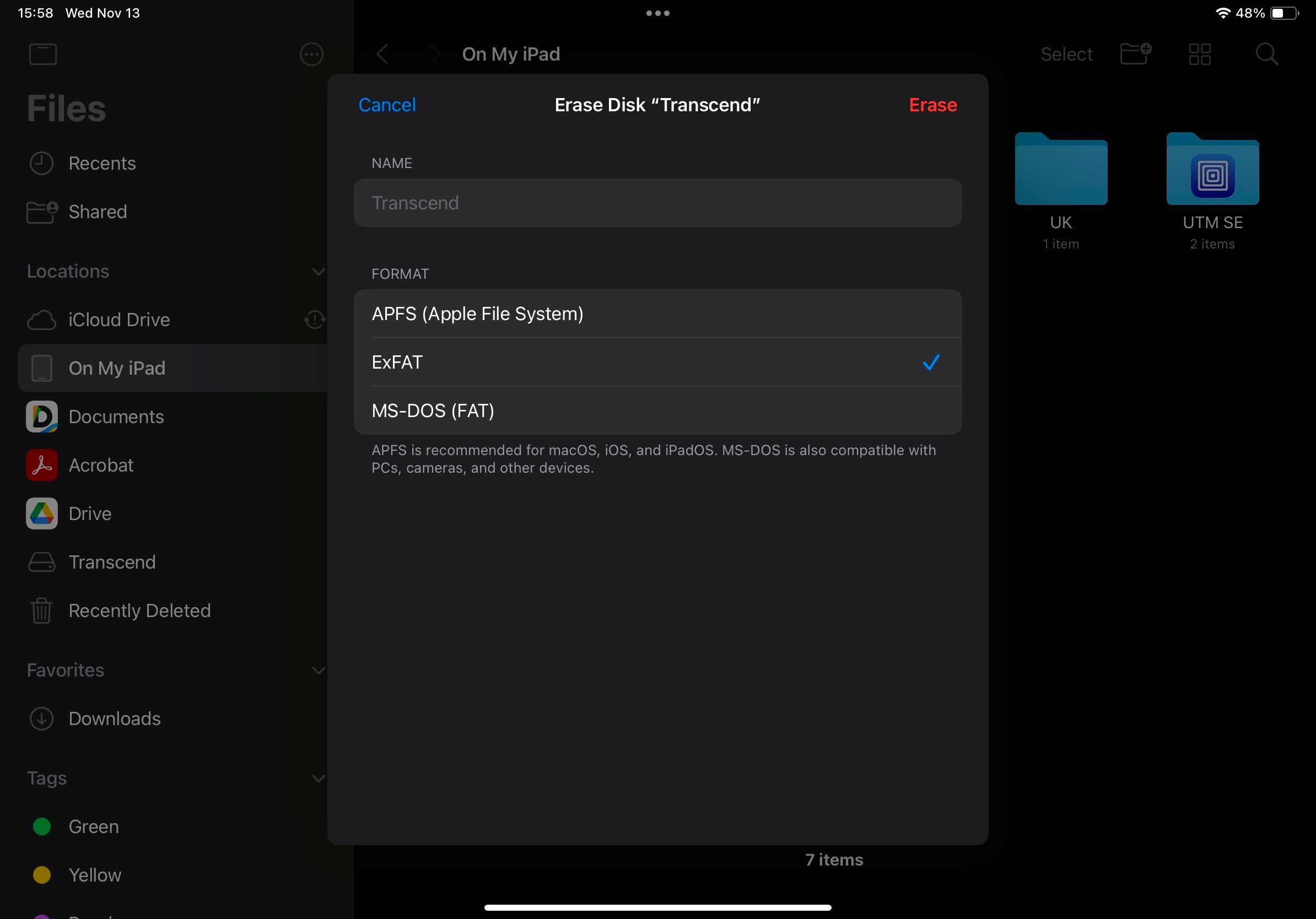
- If you want to rename the drive, tap the NAME text field at the top and type a new name.
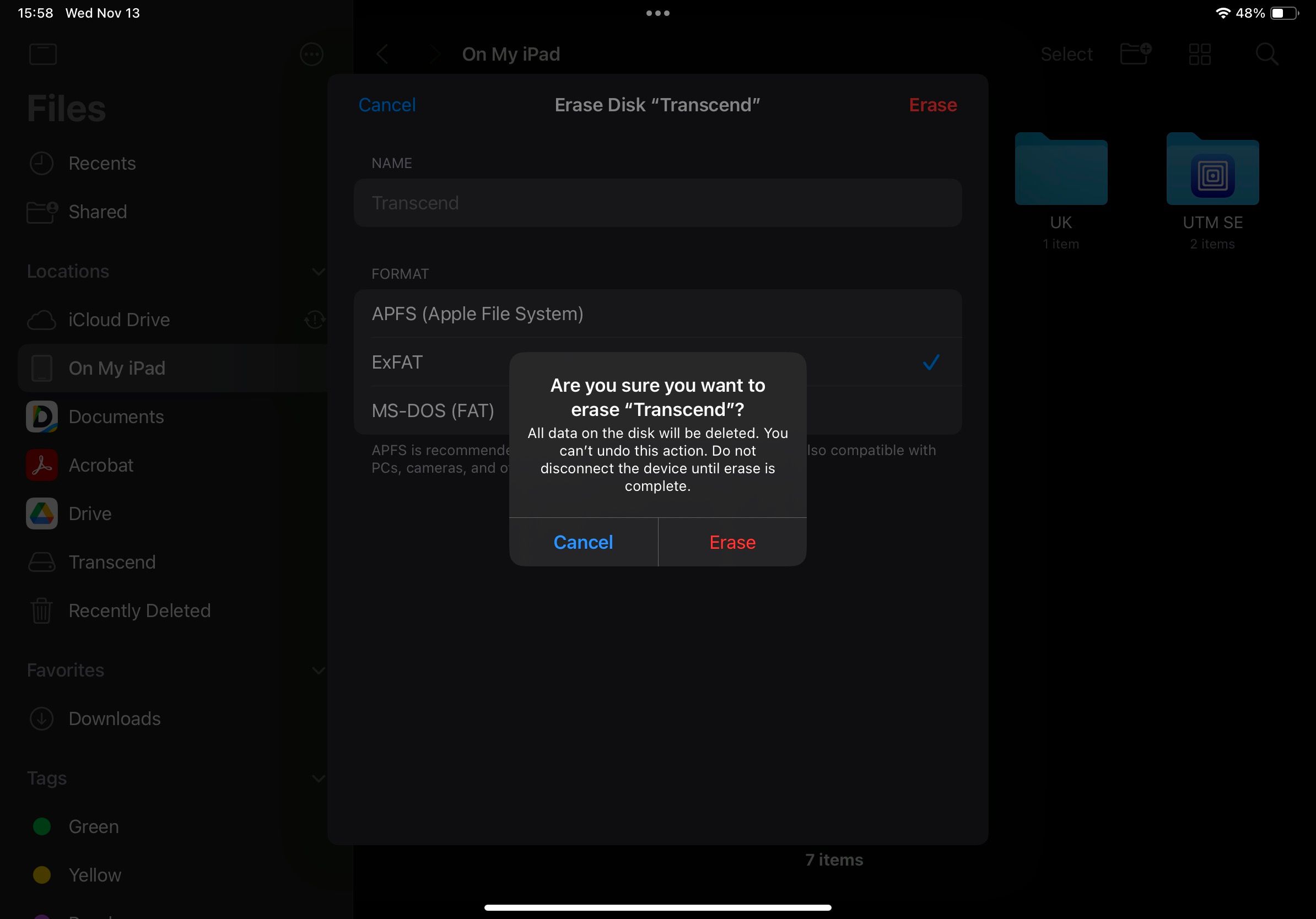
- Finally, hit Erase in the top-right corner and tap Erase in the confirmation prompt to begin erasing and formatting the drive.


You’ll now see a loading icon next to the drive, indicating the formatting is underway. Once finished, it’ll turn into a checkmark. You can then proceed to access and use the drive. When you’re done, simply unplug it from your iPhone or iPad.
Choosing the Correct Format for Your External Drive
Choosing the correct file system for your external drive is crucial and boils down to what devices you plan to use it with. Here’s a quick rundown to help you decide:
- APFS (Apple File System): Apple’s proprietary file system, APFS, is ideal if you want to use the drive exclusively with Apple devices, like an iPhone, iPad, Mac, or Apple TV. Additional options like Case Sensitive and Encrypted are available with this format. While the latter secures data on the drive, the former treats uppercase and lowercase letters in file names differently to avoid naming conflicts.
- ExFAT: This is a great choice if you want the freedom to use the drive or SD card on various devices, including Apple devices, Windows and Linux computers, TVs, Android phones, and digital cameras.
- MS-DOS (FAT): It offers great compatibility with older systems. However, it’s a relatively older format and ideal only for smaller storage needs due to its 4GB file size limit.
Having the ability to format drives in the Files app is incredibly useful and eliminates the need for a Mac or PC. However, that’s not all the built-in file manager in iOS and iPadOS is capable of. Thanks to recent iOS and iPadOS updates, you can perform various other tasks with the Files app on an iPhone or iPad.